Click the thumbnails to expand them.
This site seems very simple.
Yes, it is. That's by design.
BeAServant aims to do exactly one thing, and only one thing, and to do it very well. What you see is exactly what you get: a service facilitation tool for churches and small organizations. It lets you manage tasks and members, and connect them together, and send out automated email reminders of those tasks. That's it. No fuss, no clutter.
Is it really free?
Yes. An organization can use Be a Servant free of charge with up to 5 members and 20
active tasks at a time. Completed tasks don't count toward that limit, so you can keep serving indefinitely: finish a task and you can add another. There's no time limit, no credit card required and no gimmicks.
The free service is supported by a few unobtrusive ads. If your organization outgrows the free limits, or you'd simply rather not see ads, a paid plan (from $2.99 a month, or as little as $2.08 a month paid for three years; see
Pricing) gives you unlimited members and tasks, and
everyone in a subscribing organization sees no ads at all.
I'd like to get started.
Sign up on the
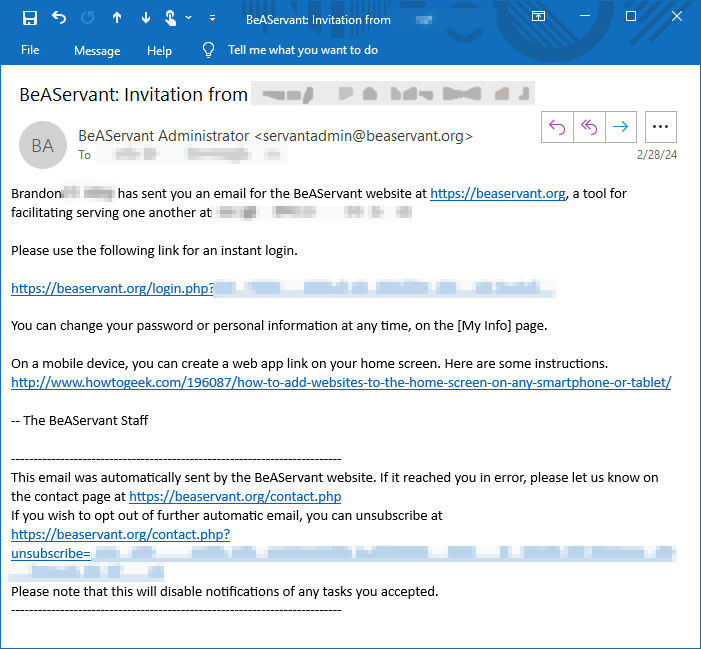
New Account page. You will need to provide some info about the organization and yourself. We'll send you a confirmation email to which you must respond, and you'll be ready to start with up to 5 members and 20 active tasks for free (completed tasks don't count). It's that easy!
How do I add more people who will help serve?
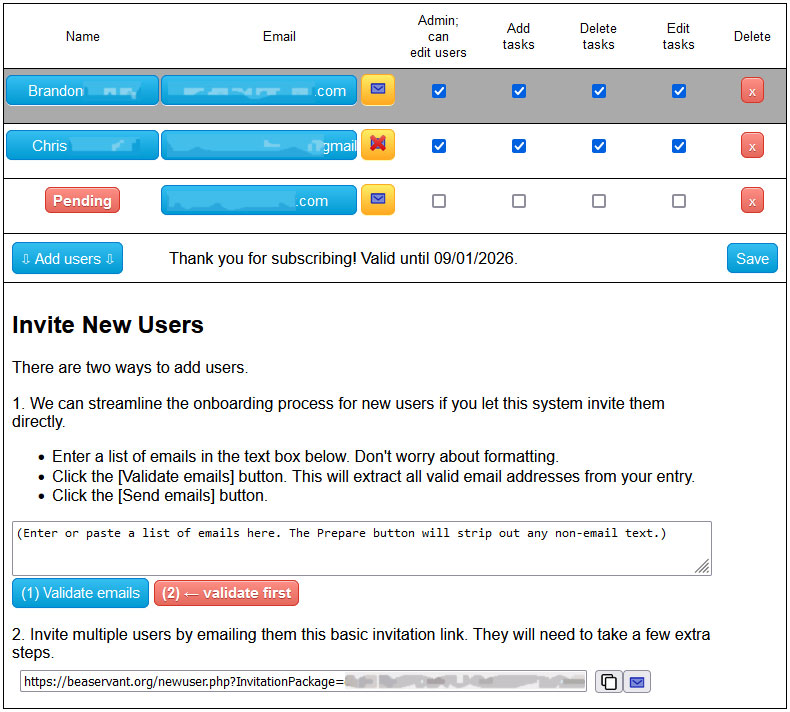
This is reserved for members who are assigned administrator privileges (whoever set up the account, and anyone they also assign as an administrator). If you're an administrator, you can manage membership on the
Members page. You can let this system invite them by automated email (which will be easiest for them to onboard) or you can copy and email an invitation link to them (which will require a couple extra steps for them to verify their email address).
How do I manage my list of tasks?
That's all on the
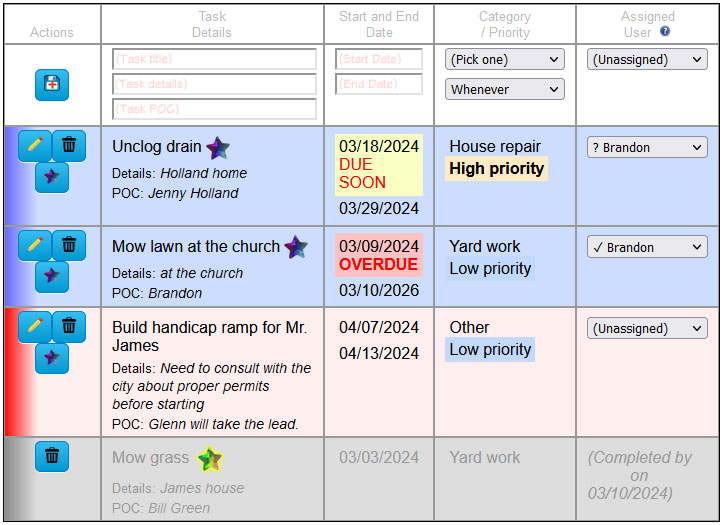
Tasks page. There, depending on your member permissions, you can add new tasks with the
Add task button, edit or delete existing tasks, and select who is assigned to each task. Administrators have full control, while non-administrator members can generally only see their own tasks or tasks which have not yet been claimed.
Use the tabs above the list to show
My tasks,
Unassigned tasks,
All open tasks,
Completed tasks or
All tasks, and the search box to find a task by name, details, contact or helper.
I marked a task complete by mistake.
Right after you mark a task complete, a message appears at the bottom of the screen with an
Undo button. If that message is gone, an administrator can find the task under the
Completed tab. Administrators can also clear out old tasks with the
Delete all completed tasks button on that tab.
Can I put Be a Servant on my phone's home screen?
Yes. Open the site in your phone's browser and choose
Add to Home Screen (iPhone: the Share button in Safari; Android: the browser's menu, then
Install app or
Add to Home screen). It then opens like an app, with the main pages in a tab bar along the bottom. On a computer, browsers such as Chrome and Edge offer an
Install button in the address bar.
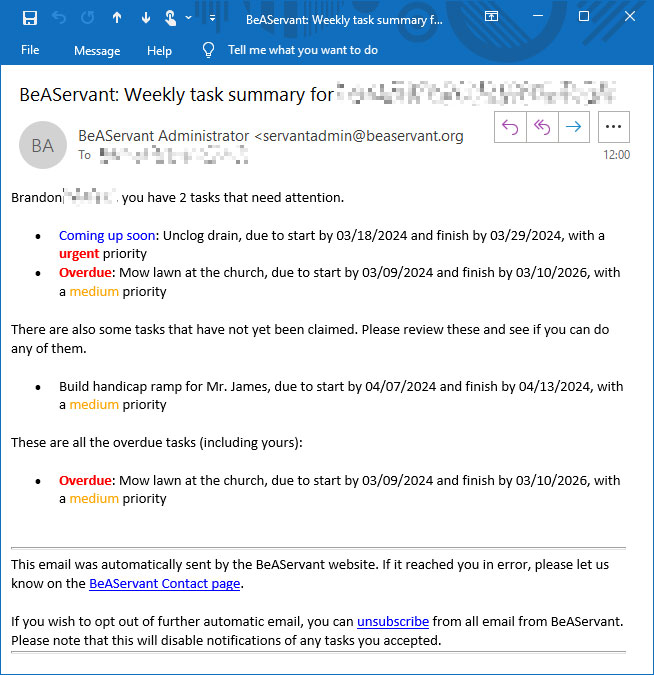
Tell me about the reminder emails.
Up to twice a week, our system will send reminders to all members who have pending tasks, and anyone who is eligible to help accept a task which is not yet claimed.
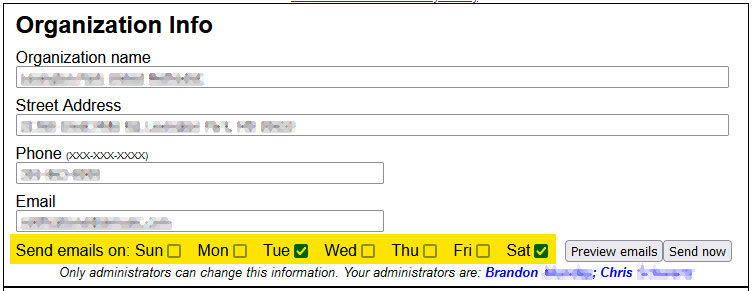
How do I change when the emails get sent?
That's on the
My Info page, in the
Organization Info section (administrators only). Use
Preview emails to see what members will receive.
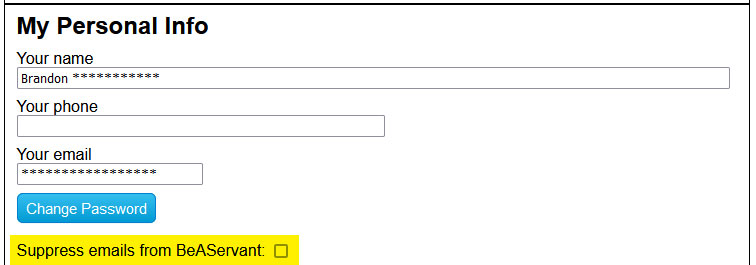
I don't want email reminders.
No problem. On each member's
My Info page, there is a checkbox to opt out of all email. Administrators can override that preference if needed.
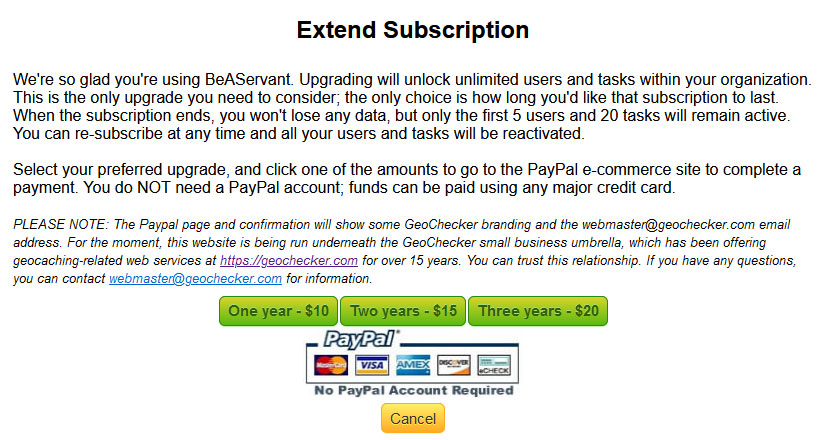
Our organization needs more than 5 members or 20 active tasks.
No problem. On the bottom of the
My Info page of any administrator, you'll find your organization's subscription info. A paid plan (see
Pricing) adds unlimited members and tasks, and it also removes all ads for everyone in your organization.
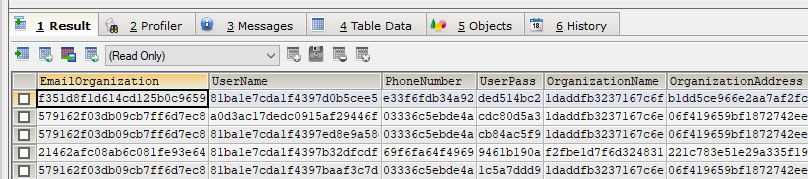
What do you do with my info?
Check out our
Terms of Use and privacy policy page. In short, we encrypt nearly all your info, and we never ever share anything with anyone else — including advertisers. Free accounts show a few ads; organizations with a subscription see none.
Are there special features for organization administrators?
Yes, when you are logged in and your account is set as an administrator, there are extra settings and controls on both the
Members and
My Info pages. Additionally, administrators have extra control over tasks and assignments.
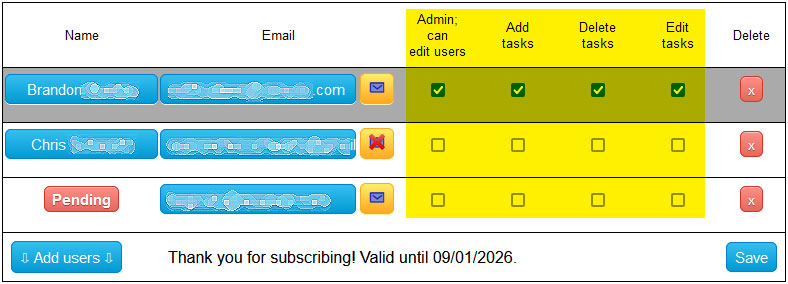
I don't want some members to be able to edit or delete tasks.
That's why organization administrators can assign individual permissions to each member on the
Members page.
Help! I forgot my password!
Use
Reset your password (also linked from the login page). We'll email you a temporary password, and you'll choose a new one the first time you log in with it.
 Be a Servant